

How to use ICAM365 Camera?
-Download the app/VMS and follow the prompts to setup your camera
– Watch the video or check FAQs for quick answers
-WhatsApp us for expert guidance
We are always happy to help!



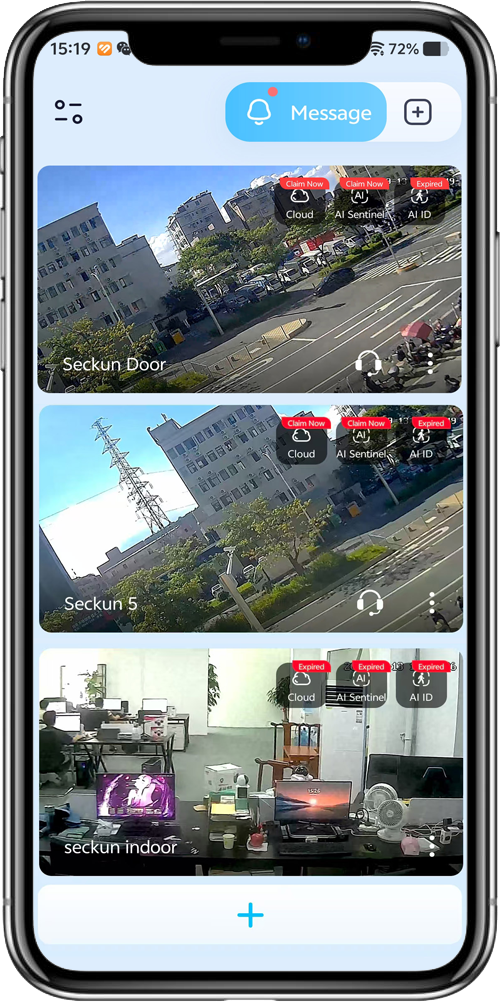
icam365 Camera setup list
0:16
icam365 Camera Features
0:16
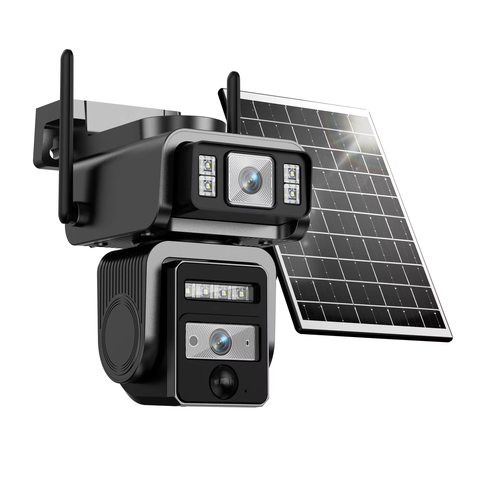
AJ25 - icam365 Solar Camera
3MP+3MP WIFI/4G HD PTZ Camera Dual Lens with Dual screen Ai Human Detect Solar Power Battery built-in Surveillance Camera icam365 App
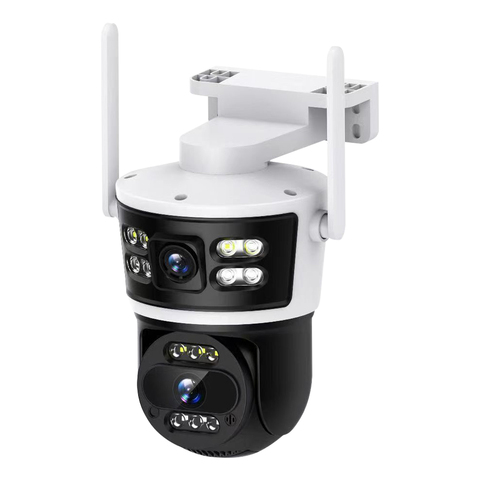
S12 - icam365 WIFI Outdoor Camera
3MP+MP HD PTZ Wifi Camera Dual lens with Dual Screen Ai Human Detect Auto Tracking Outdoor Surveillance Camera icam365 App
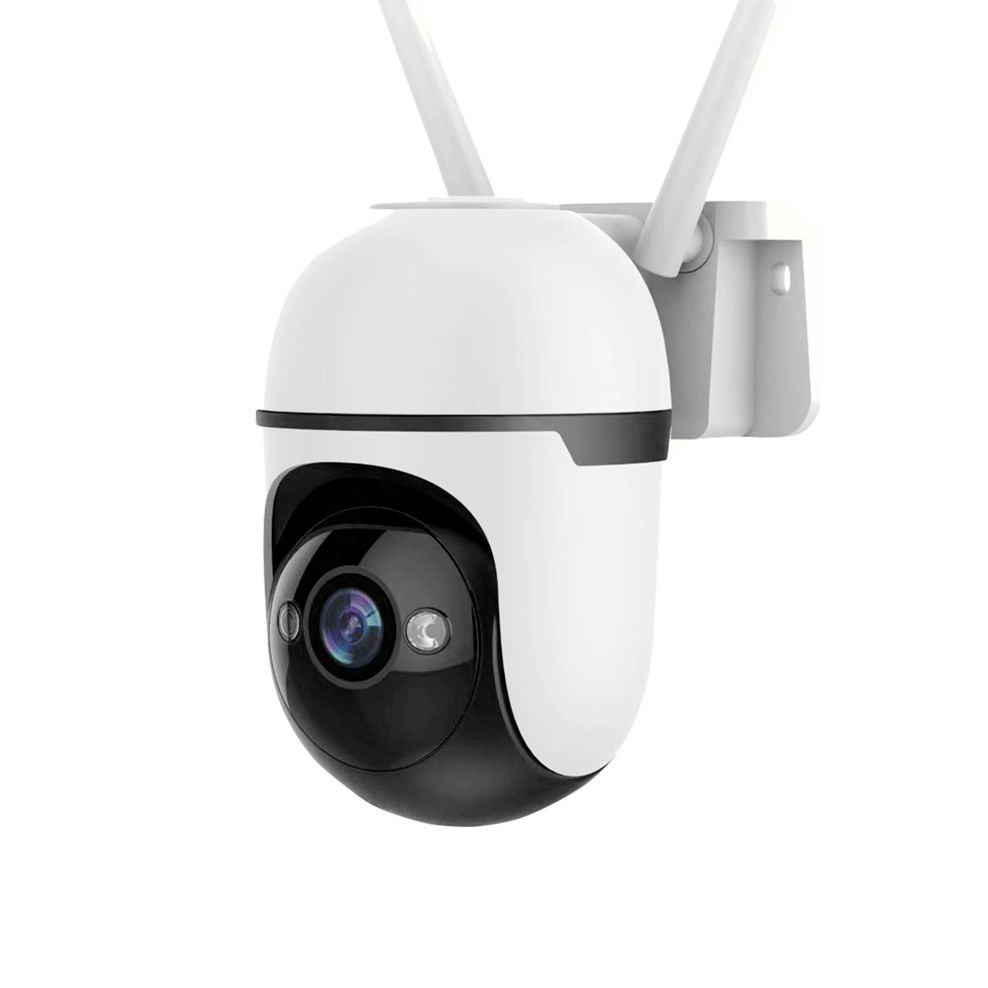
AJ01 -icam365 WIFI Outdoor Camera
3MP HD PTZ Wifi Camera Ai Human Detect Auto Tracking Outdoor Surveillance Camera icam365 App
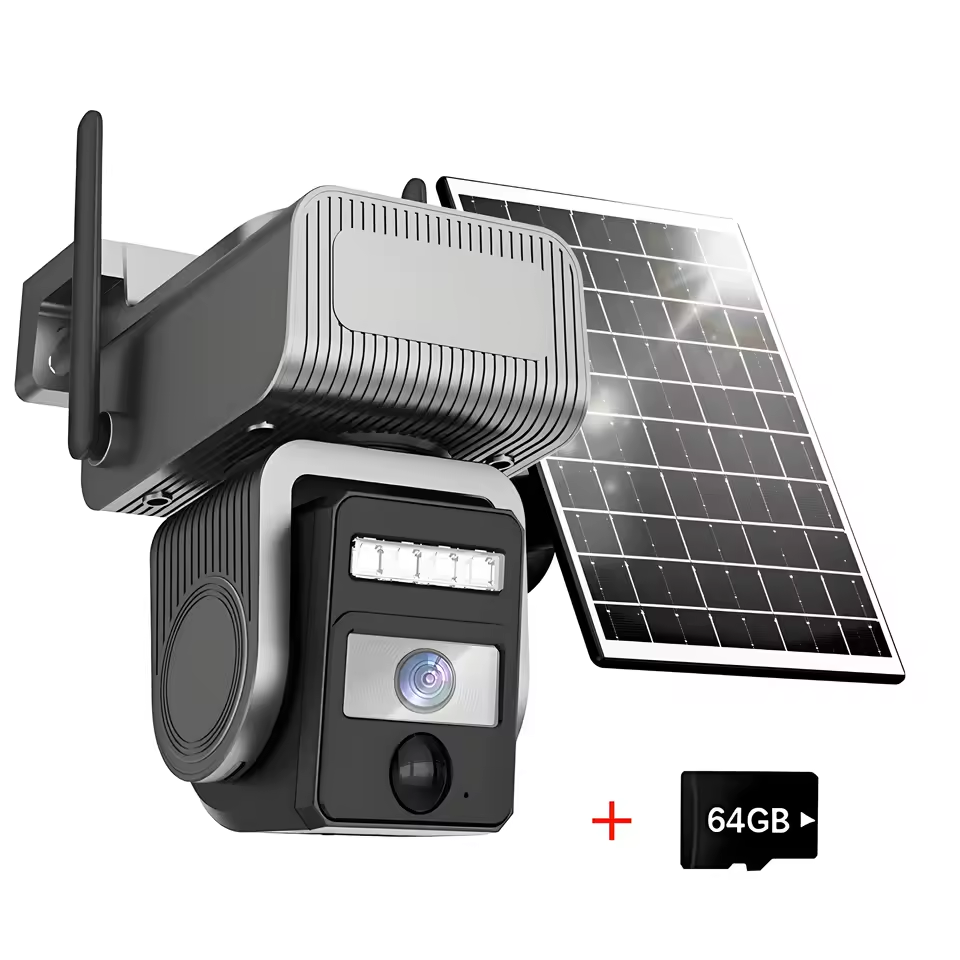
AJ24- icam365 Solar Camera
3MP WIFI/4G HD PTZ Camera Ai Human Detect Solar Power Battery built-in Surveillance Camera icam365 App
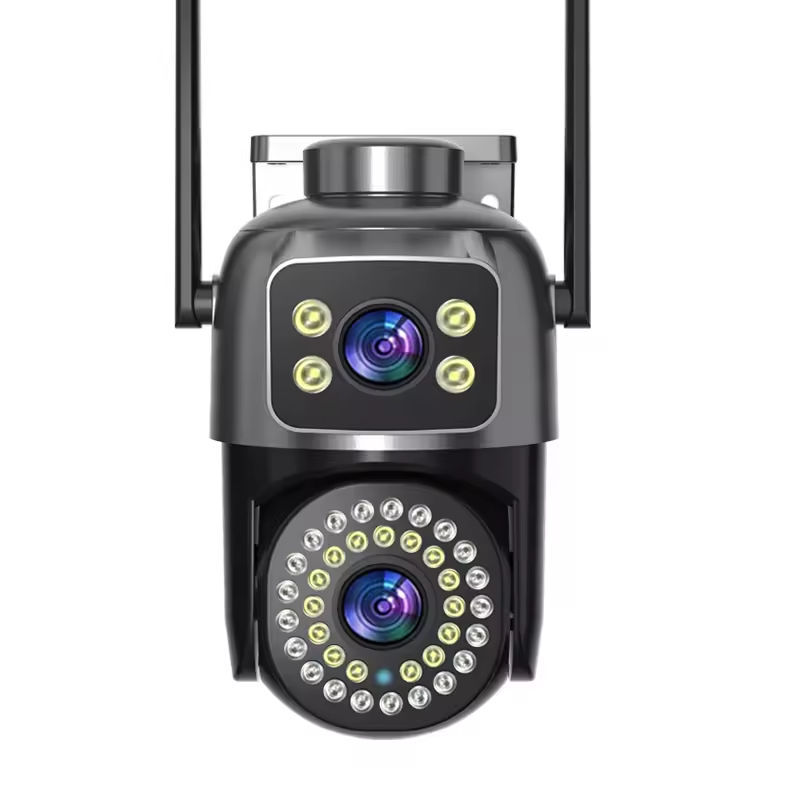
AJ17- icam365 WIFI Outdoor Camera
3MP+MP HD PTZ Wifi Camera Dual lens with Dual Screen Ai Human Detect Auto Tracking Outdoor Surveillance Camera icam365 App

AJ14 -icam365 WIFI Indoor Camera
3MP HD PTZ Wifi Camera Ai Human Detect Auto Tracking Indoor Surveillance Camera icam365 App

If you’re unsatisfied with our product or service, have suggestions, questions, feedback about the company, please fill out this form. Your message will be personally reviewed by our CEO. This helps us identify areas for improvement and address them promptly. Your feedback is crucial to our growth, and we sincerely appreciate it.
Frequently Asked Questions
icam365 APP FAQ
A: Initial setup takes 2-3 minutes via the printed manual or APP instructions.
YouTube tutorial: https://www.youtube.com/@seckun2025
A:
* Charge First: Due to prolonged storage/shipping, the battery may drain. Ensure the camera is charged to 40%+ before first use (charge 5-8 hours).
* Factory Reset:
Locate the reset button near the memory card. Press and hold the button for 7–10 seconds until you hear the prompt "Factory reset in progress." Wait an additional 10–15 seconds until the reset is complete.
* Check Indicators:
Green Solid: Connected successfully.
Green Blinking: Detected SIM card signal (follow APP prompts to bind).
Red: No SIM signal (check if the SIM card is out of credit).
Contact Support: If the SIM card has credit but the light is still red, contact us to unbind the camera/SIM card and rebind with your own card.
A:
Send photos of the camera (model required) and SIM card (ICCID visible) to customer service. We will help you check the camera and data working status and solve the problem within 24hours.
A:
Free SIM Card: Comes with 100MB (valid for 7 days).
Top-up: Via the icam365 APP at 1940 THB/year, 485 THB/quarter, 194THB/month (unlimited data).
A:
Recommended: Use our SIM card (stable & easy management, you can top up directly from APP, and 100M Free data for trial).
Alternative: Submit a camera photo (QR code required) to customer service for SIM card unbinding, then use your own 4G SIM.
Solar-Powered Models:
Full Charge: 365 days (continuous operation).
Low Power Mode in rainy days: 5-7 days;
Continuous Recording in rainy days: 5-8 hours.
A:
It depends on how big capacity you choos ( 32GB/64GB/128GB optional).
Storage Duration:
* 32GB: 1-7 days
* 64GB: 7-15 days
* 128GB: 15-30 days
Auto-Overwrite: Old data is replaced when full.
A:
No, 4G Camera Support 4G-only (SIM card included).
A:
Use our 4G camera (SIM card included, ideal for no-power/no-network areas).
upper right corner
* Now you can add new cameras.
A:
this app is Ads free.
* 32GB: 1-7 days
* 64GB: 7-15 days
* 128GB: 15-30 days
A:
* Reset to factory settings: Press the button under the rubber plug for 7–10 seconds, then reconnect via the app.
* Network compatibility: Use 2.4 GHz Wi-Fi (avoid 5 GHz networks).Our cameras operate at 2.4 GHz. If connectivity issues arise, configure your router to broadcast at this frequency.
* Special characters in Wi-Fi name or password: The camera can only recognize letters, numbers, and basic English symbols (e.g., !@#$%^&*) in the Wi-Fi name or password. If special characters (e.g., emojis, non-Latin symbols, or unsupported punctuation) are included, the camera may fail to connect.
* Change Lens to Scan QR code: If it is dual lens camera, please Scan the QR code by the PTZ lens ( not the upper lens).
A:
Before initial setup, reset the camera by holding the steel button near the memory card slot for 7–10 seconds until a confirmation beep sounds.
A:
Disable "Dual-Band Merge" or "5G Priority" in the router admin panel (e.g., 192.168.1.1).
Enable 2.4 GHz separately, save, and reboot.
A:
* PC viewing supported. Download software at: https://www.icam365.cc/
* Camera doesn't support ONVIF protocol (incompatible with NVR systems).
A:
WhatsApp: +86 19537954527 for unresolved issues.